


Technical drawing tools are useful for traders when analysing charts. These tools are available in most trading terminals. This article will show you how to use drawing tools in MT4.
Chart Patterns and Geometric shapes
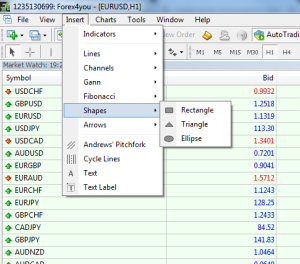
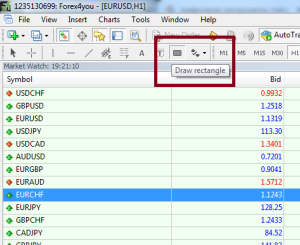
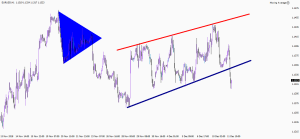
It is important to know the difference between chart patterns, such as triangles and geometrical shapes. These are only used to highlight quotes. You can place a geometrical form on the chart by clicking on “Insert”, then clicking “Shapes” and finally selecting the button on your toolbar. You can display the buttons that allow you to draw figures in your terminal’s toolbar by right-clicking on it and choosing “Customize” from the context menu.
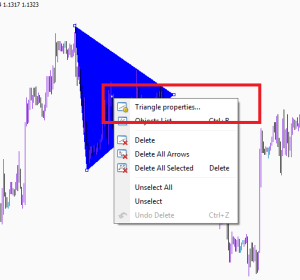
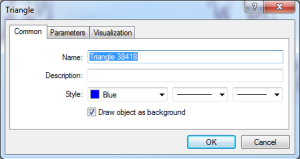
To customize shapes (change size, color, etc.) Double-click it to customize shapes (change size, color, etc.) The shape will be transferred to edit mode. Sizing dots will appear in the center and along its edges. Select “Properties …”.” by clicking on one of them. The context menu opens and allows you to set parameters for the shape. You can also resize an object by clicking on the left mouse button to capture the side sizing dots. You can drag and drop the entire shape by clicking on the center dot. Double-clicking once more will take the object from edit mode.
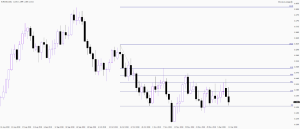
Draw Lines To create Support and Resistance Levels
Lines can be used by traders to draw support or resistance levels, price levels, trends, and so forth.
Double-click on a line to select it. After right-clicking it, you can go to the parameters of that line.
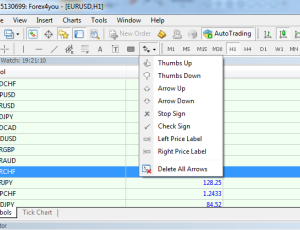
Icons are another group of graphic objects that traders can use in MT4. These graphic labels allow traders to plot on charts while they study it. The program contains eight icons. They are “thumbs up”, “thumbs down”, “ arrow up, “arrow down”, “stop sign”, “check sign” and “left price tag”. These icons can be placed on the chart by using the “Insert”, “Arrows” or the toolbar’s “Arrows”, buttons, or by clicking the button “Arrows”, and choosing the icon from the drop-down menu.
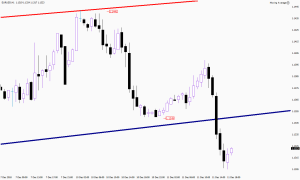
You can adjust icons in the same way as other graphic objects. Double-clicking takes the icon into edit mode. Then, using the right mouse button, you can access its settings and modify its size, color and other parameters. Double-click the icon to remove it from edit mode after you have made any necessary adjustments.
Draw Equidistant Channels and Fibonacci Lines
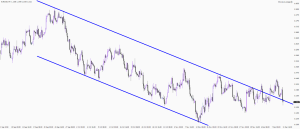
To help traders predict future price movements, Equidistant channels and Fibonacci lines may also be applied to charts. These lines and channels are drawn in the same way as normal lines.
Forex Text Tagging: What is it for?
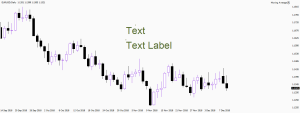
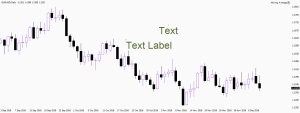
Text tagging is also possible. Two tools are available in MT4, “text” or “text labels”. Text and text labels appear exactly the same on the chart. There is however one difference. Text is able to move with the chart but the text label remains in place regardless of how far you scroll.
Double-clicking can be used to switch between edit mode and exit mode. Edit mode allows you to move objects and change settings.
The risk involved with forex trading online shouldn’t be overlooked. There is a chance of losing a significant amount of money if you don’t know what you’re doing. It is crucial to gain a knowledge of the market prior to you even begin investing with money. Keep reading our lessons.